Getting started with MOQ Manager
Install the app, confirm checkout enforcement is active, and create your first minimum order quantity rule. A complete first-run guide with screenshots.
MOQ Manager enforces minimum order quantities on your products at checkout. This guide walks you through installing the app, confirming enforcement is active, and creating your first rule. Budget five minutes.
Step 1: Install the app#
Install MOQ Manager from the Shopify App Store. The dashboard gives you the lay of the land at a glance: Platform Status confirms your rules are being enforced at checkout, Active Rules counts what you've configured, and Plan & Usage tracks how many products your rules cover.

Step 2: Check App Setup#
Open Settings in the app navigation. The App Setup checklist covers everything needed to go live, and the first two steps complete themselves:
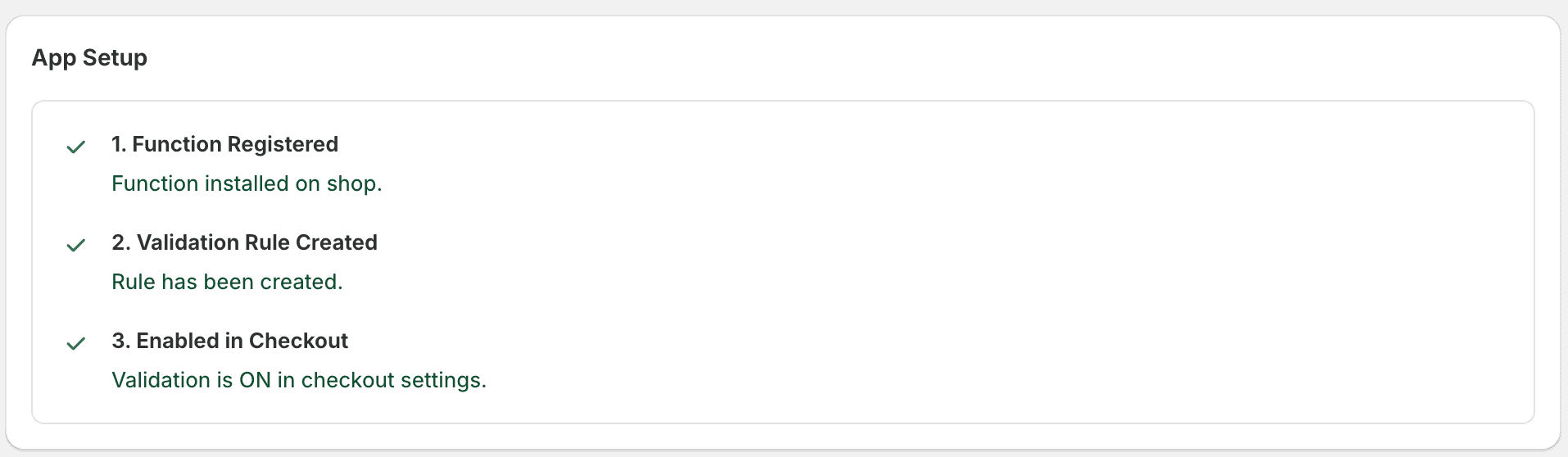
- Function Registered: the checkout validation function installs on your shop automatically.
- Active at checkout: enforcement turns on automatically too. If it ever shows as inactive, one click on Activate Now fixes it; there are no Shopify settings to visit.
- Add theme blocks (recommended): the MOQ Product Badge and MOQ Cart Validator blocks show customers your quantity rules on the product page and in the cart, before they ever reach checkout. See The storefront widget.
The same Settings page also holds the checkout error messages, with variables like {{product_name}} and {{moq_quantity}}, so what customers see is worded your way.
Step 3: Create your first rule#
Head to Quantity Rules and click Add Rule:
- Give the rule a title (e.g. "Business Cards") and set a minimum quantity. You can also set a maximum, or an order multiples step (e.g. multiples of 25).
- Choose how to count quantities: added up across the whole cart, or per cart line for customised products where every variation is its own line.
- Pick who it applies to (all customers, or only/except customers with certain tags) and what it covers: specific products, whole collections, or dynamic tag and type targets that pick up future products automatically.
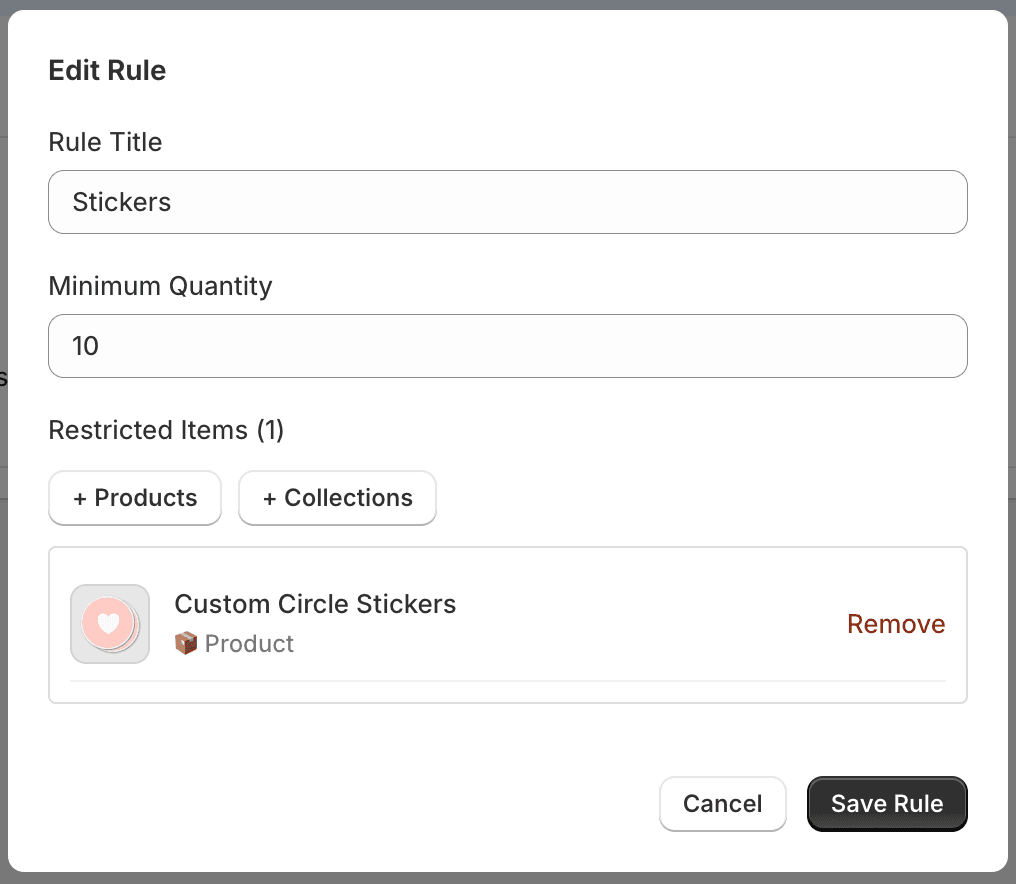
Click Save Rule. It appears on the Quantity Rules page along with the products it covers, and takes effect at checkout immediately.

The Cart requirements panel at the top of the same page sets order-level rules: a minimum order value, or minimum and maximum total items across the whole cart, on top of any product rules.
What happens at checkout#
If a customer tries to check out below the minimum (or above the maximum, or off a multiple), Shopify blocks the order and shows your message right at checkout:

With the theme blocks installed, customers see the requirement on the product page and get live feedback in the cart, so most never hit the checkout error at all.
Plan limits#
The Free plan supports rules covering up to 3 products in total. If you need more, click Upgrade Plan from the Quantity Rules page. Paid plans cover 10, 50, or unlimited products. See Plans & Billing.
Was this helpful? If something isn't working, contact support.